Images to TIFF Converter
Convert JPG and PNG images to TIFF format online for free. High-quality image to TIFF converter for print, scanning, and archiving.
Image to TIFF Converter: Convert Images to TIFF Online for Free
Do you need your photos, scans, drawings, or graphics to stay in the highest possible quality with no loss at all, perfect for printing, archiving, or professional editing? The free online tool at https://www.image-extractor.com/image-to-tiff-converter helps you turn any regular picture, screenshot, logo, document scan, or graphic into TIFF format very quickly. You don’t need to install any app, pay money, or sign up for anything. Just visit the page in your browser, upload your image, click the convert button, and download the ready TIFF file. The website keeps the design clean and simple – there is a clear upload area, one main button, and links to other converters like PNG to JPG, image to AVIF, image to AI, image to BMP, image to DDS, image to DIB, image to EPS, image to HEIC, and many more. This makes it easy to try different formats in the same place.
In this article, we explain everything about this tool using very simple English so that even children or beginners can understand. We talk about what TIFF is, why people still use it a lot, when you should pick TIFF, how to use the converter step by step, the main benefits, useful tips, things to avoid, real examples from daily life, answers to common questions people ask, and why this tool is a good option. Most parts are written in normal paragraphs, and only the really important lists (like benefits or steps when it makes sense) are shown in points.
What Is TIFF Format?
TIFF stands for Tagged Image File Format. It is one of the oldest and most trusted image formats, created in the 1980s and still used widely today. A TIFF file can store images with lossless compression (no quality loss) or no compression at all, keeping every single pixel and color detail exactly as it is. TIFF supports very high color depth (8-bit, 16-bit, 32-bit), multiple layers in some versions, transparency (alpha channel), wide color spaces, and even multiple pages in one file. TIFF files end with .tif or .tiff. Because it is so flexible and reliable, TIFF became the standard for professional photography, scanning, printing, archiving, medical imaging, publishing, and any work where quality cannot be compromised.
Why People Still Love TIFF
TIFF is still one of the top choices in professional fields because it gives perfect, lossless quality and works with almost every scanner, printer, photo editor, and archiving system. Libraries, museums, hospitals, government offices, photographers, and publishers trust TIFF for long-term storage and high-quality printing. It supports CMYK colors for professional printing and can hold very large images without problems. While it makes bigger files than JPG or PNG, the zero quality loss makes it worth it for important work. Most people search for “convert image to TIFF” or “make TIFF online free” when they need master copies, scan archives, print-ready files, or images for Photoshop editing without any compression damage.
When You Should Convert Images to TIFF
You should use this tool when you need the best possible quality with no loss. It is ideal for scanning documents or photos for archiving, creating master copies before editing, preparing images for professional printing, medical or scientific imaging, publishing books or magazines, saving high-resolution photos for future use, or working in Photoshop/Lightroom where you want lossless files. If you need small files for web, email, or social media, formats like JPG, PNG, AVIF, or HEIC are much better choices.
Step-by-Step Guide to Using the Converter
The whole process is very quick and simple. Here are the exact steps:
Step 1: Go to the Website
Open your browser and visit https://www.image-extractor.com/image-to-tiff-converter. The page loads with a spot to add your file.
Step 2: Upload Your Picture
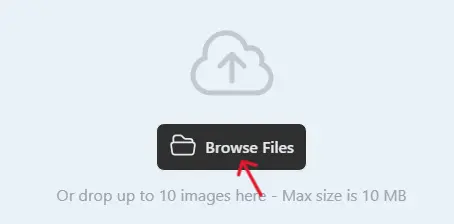
Click the choose file button or drag your image (like a JPG or PNG) from your device.
Step 3: Click Convert
Hit the "Convert" button. The tool reads your image and turns it into TIFF format.

Step 4: Download the TIFF File
When finished, a download link shows up. Click to save the .tiff file.

Done! No hard choices or settings. If your file is large, it might take a bit longer, but it's still fast. If there's a problem, try a smaller file or a different starting format.
Main Benefits of Converting to TIFF
Here are the most important advantages in points:
- 100% lossless – every detail and color stays perfect.
- Supports very high bit depth and wide color spaces.
- Great for professional printing (CMYK support in many TIFFs).
- Keeps transparency (alpha channel) when needed.
- Ideal for long-term archiving and preservation.
- Used as a standard in scanning, medical, and publishing.
- Handles very large images without quality drop.
- Opens in almost every photo editor and professional software.
Practical Tips for Good Results
Start with high-quality originals – good scans, high-resolution photos, or sharp graphics give the best TIFF files. Use lossless mode if the tool offers options (or assume high-quality default). For documents or line art, PNG input often works well. After downloading, open the TIFF in Photoshop, GIMP, IrfanView, or any viewer to check sharpness and colors. For archiving, name files clearly like “scan_document_2026.tif” and store them safely. Keep originals safe so you can convert again if needed.
Things to Avoid
Do not use TIFF for web or social media – files are usually very large and slow to load. Do not keep converting the same file many times – always go back to the original. Remember that TIFF files get big fast – do not use them for small phone photos. Do not expect small sizes – TIFF is about quality, not size. If you see an error, check your internet or try a smaller input file first.
Real-Life Examples
A library scans old books and converts pages to TIFF for digital archiving – keeps every detail for years. A photographer saves raw-processed photos as TIFF master copies before making smaller JPGs. A hospital technician converts medical scans to TIFF for records – high-quality and reliable storage. A publisher prepares book illustrations in TIFF – perfect for professional printing. A student converts project drawings to TIFF for exact printing on large paper.
Why Choose This Image to TIFF Converter
This tool is completely free, has a simple page without too many ads or pop-ups, asks for no email or sign-up, and is part of a big collection of image converters. For fast one-time use, testing TIFF quality, or making quick TIFF files for archiving, printing, or professional work, it is perfect and very beginner-friendly.
Final Thoughts
The image to TIFF converter at https://www.image-extractor.com/image-to-tiff-converter is a smart, fast, and free way to make your images lossless and high-quality for scanning, printing, archiving, or professional editing. Whether you want perfect master copies, long-term preservation, or files ready for Photoshop and printing, this tool makes it super easy. Visit the link, upload any picture or scan, and try making your own TIFF right now. You will get clean, high-detail files that last forever and probably use it again for important projects!