Images to ICO Converter
Convert JPG and PNG images to ICO format online for free. Fast and secure image to ICO converter for favicons, apps, and Windows icons.
Image to Ico Converter: Convert Images to ICO Online for Free
Do you need small icons for websites, apps, desktop shortcuts, or favicons that look sharp in different sizes? The free online tool at https://www.image-extractor.com/image-to-ico-converter helps you turn any regular photo, logo, drawing, screenshot, or graphic into ICO format very quickly. You don’t need to install any app, pay money, or sign up for anything. Just visit the page in your browser, upload your image, click the convert button, and download the ready ICO file. The website keeps the design clean and simple – there is a clear upload area, one main button, and links to other converters like PNG to JPG, image to AVIF, image to AI, image to BMP, image to DDS, image to DIB, image to EPS, image to HEIC, and many more. This makes it easy to try different formats in the same place.
In this article, we explain everything about this tool using very simple English so that even children or beginners can understand. We talk about what an ICO is, why people still use it a lot, when you should pick an ICO, how to use the converter step by step, the main benefits, useful tips, things to avoid, real examples from daily life, answers to common questions people ask, and why this tool is a good option. Most parts are written in normal paragraphs, and only the really important lists (like benefits or steps when it makes sense) are shown in points.
What Is ICO Format?
ICO stands for Icon. It is a special file format made by Microsoft for Windows icons. An ICO file can contain multiple images inside one file, different sizes (like 16×16, 32×32, 64×64, 256×256 pixels), and sometimes different color depths. This allows the same icon to look sharp and clear whether it is shown as a tiny favicon in a browser tab, a medium desktop shortcut, or a large app icon in Windows. ICO supports transparency (through alpha channel in newer versions) and can include both bitmap and PNG-like data. Most ICO files end with .ico. They are the standard for Windows desktop icons, folder icons, application icons, browser favicons, and taskbar pins. ICO is very old, but still the most compatible format for Windows icons today.
Why People Still Love ICO
ICO is still the number one format for Windows icons because every version of Windows (from XP to Windows 11) uses .ico files natively for shortcuts, folders, programs, and favicons. Web browsers also accept ICO for website favicons (the small icon shown in tabs and bookmarks). Even though PNG is now supported for favicons, many developers and designers still prefer ICO because it works everywhere and can pack multiple sizes in one file. Most people search for “convert image to ICO” or “make ICO online free” when they create website favicons, desktop shortcuts, app icons, folder custom icons, or Windows theme icons.
When You Should Convert Images to ICO
You should use this tool when you need icons that work perfectly on Windows or as favicons. It is ideal for website favicons, desktop shortcuts, custom folder icons, application icons, taskbar pins, Windows themes, browser bookmarks, or any small icon that needs to look good in many sizes. If you need icons only for modern web (without multiple sizes), a single PNG with transparency is sometimes enough. For mobile apps, Android uses PNG or adaptive icons, iOS uses PNG; ICO is mainly for Windows.
Step-by-Step Guide to Using the Converter
The whole process is very quick and simple. Here are the exact steps:
Step 1: Go to the Website
Open your browser and visit https://www.image-extractor.com/image-to-ico-converter. The page loads with a spot to add your file.
Step 2: Upload Your Picture
Click the choose file button or drag your image (like a JPG or PNG) from your device.
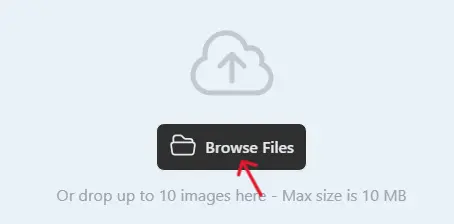
Step 3: Click Convert
Hit the "Convert" button. The tool reads your image and turns it into an ICO format.

Step 4: Download the ICO File
When finished, a download link shows up. Click to save the .ico file.

Done! No hard choices or settings. If your file is large, it might take a bit longer, but it's still fast. If there's a problem, try a smaller file or a different starting format.
Main Benefits of Converting to ICO
Here are the most important advantages in points:
- Contains multiple sizes in one file – looks sharp everywhere.
- Perfect compatibility with all Windows versions.
- Works as a favicon in every browser.
- Supports transparency for clean icons.
- Small file size for fast loading.
- Easy to set as a desktop, folder, or app icon.
- No quality loss when resized (multiple versions included).
- Standard format trusted by Windows for years.
Practical Tips for Good Results
Start with square images that have simple designs and clear edges – logos, icons, letters, symbols, or simple graphics give the best ICO results. Use PNG input for transparency and sharp lines. Make sure your original image is at least 256×256 pixels so the tool can create good, large versions. After downloading, test the ICO file by setting it as a folder icon or favicon – right-click a folder → Properties → Customize → Change Icon, or upload to your website as favicon.ico. Keep the original PNG safe so you can make a new ICO if needed.
Things to Avoid
Do not use very detailed or photographic images – ICO is best for simple, flat designs. Do not expect ICO to work well on mobile apps – use PNG instead. Do not keep converting the same file many times without going back to the original. Remember that ICO files should be square – non-square images may get cropped or stretched. If you see an error, check your internet or try a smaller/simpler input file first.
Real-Life Examples
A website owner converts their logo to an ICO and adds it as a favicon, a small icon that shows in browser tabs. A student customizes desktop folders with subject icons made from ICO files, makes computer look organized. A small business creates app shortcut icons in ICO for Windows employees. Friends make funny profile icons in ICO for Windows taskbar pins. A gamer turns game character faces into ICOs for desktop shortcuts – quick access to favorite games.
Why Choose This Image to ICO Converter
This tool is completely free, has a simple page without too many ads or pop-ups, asks for no email or sign-up, and is part of a big collection of image converters. For fast one-time use, testing favicons, or making quick ICO files for Windows, it is perfect and very beginner-friendly.
Final Thoughts
The image to ICO converter at https://www.image-extractor.com/image-to-ico-converter is a simple, fast, and free way to make custom icons that work perfectly on Windows desktops, folders, apps, and as website favicons. Whether you want sharp-looking shortcuts, professional browser tabs, or personalized computer icons, this tool makes it super easy. Visit the link, upload any logo or picture, and try making your own ICO right now. You will get multi-size icons that look great everywhere and probably start customizing everything!