Images to PNG Converter
Convert images to PNG format online for free. Fast and secure image to PNG converter with high quality and transparency support.
Image to PNG Converter: Convert Images to PNG Online for Free
Do you want your pictures, logos, screenshots, drawings, or graphics to have sharp edges, transparent backgrounds, and perfect quality without any blurry or blocky parts? The free online tool at https://www.image-extractor.com/image-to-png-converter helps you turn any regular photo, JPG, HEIC, BMP, or other image into PNG format very quickly. You don’t need to install any app, pay money, or sign up for anything. Just visit the page in your browser, upload your image, click the convert button, and download the ready PNG file. The website keeps the design clean and simple – there is a clear upload area, one main button, and links to other converters like image to JPG, image to AVIF, image to AI, image to BMP, image to DDS, image to DIB, image to EPS, image to HEIC, and many more. This makes it easy to try different formats in the same place.
In this article, we explain everything about this tool using very simple English so that even children or beginners can understand. We talk about what PNG is, why people still use it a lot, when you should pick PNG, how to use the converter step by step, the main benefits, useful tips, things to avoid, real examples from daily life, answers to common questions people ask, and why this tool is a good option. Most parts are written in normal paragraphs, and only the really important lists (like benefits or steps when it makes sense) are shown in points.
What Is PNG Format?
PNG stands for Portable Network Graphics. It is a very popular image format created especially for the internet but now used everywhere. A PNG file uses lossless compression, which means it keeps every single detail and pixel exactly as it is – no quality loss at all when you save or open the file many times. PNG supports full transparency (see-through backgrounds with alpha channel), millions of colors (24-bit or 32-bit with alpha), and sharp edges without any blur. PNG files end with .png. They are perfect for logos, icons, illustrations, screenshots, text images, web graphics, and any picture where you need clean lines or transparent parts. Unlike JPEG, PNG does not show blocky patterns or color loss, making it the best choice for non-photographic images.
Why People Still Love PNG
PNG is still one of the top image formats because it gives perfect quality with transparency and lossless compression. Almost every browser, phone, computer, design program, social media app, and website supports PNG perfectly. It is the standard for web icons, logos, buttons, memes with text, infographics, and any graphic that needs to look sharp and clean. While newer formats like AVIF and WebP are smaller, PNG remains the safest and most reliable choice when transparency or zero quality loss is important. Most people search for “convert image to PNG” or “make PNG online free” when they need transparent backgrounds, sharp screenshots, web-ready graphics, or high-quality images without compression artifacts.
When You Should Convert Images to PNG
You should use this tool when you need images with see-through backgrounds or perfect sharpness. It is ideal for logos, icons, stickers, memes with text, screenshots, web buttons, infographics, illustrations, clipart, transparent overlays, social media graphics, website images that need transparency, or any graphic where quality cannot be lost. If you have regular photographs and want very small files without transparency, JPG, AVIF, or HEIC are usually better choices.
Step-by-Step Guide to Using the Converter
The whole process is very quick and simple. Here are the exact steps:
Step 1: Go to the Website
Open your browser and visit https://www.image-extractor.com/image-to-png-converter. The page loads with a spot to add your file.
Step 2: Upload Your Picture
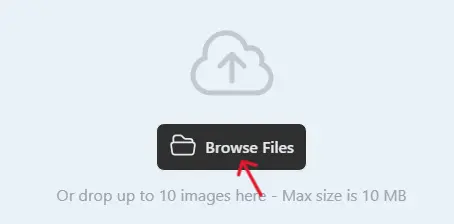
Click the choose file button or drag your image (like a JPG or PNG) from your device.
Step 3: Click Convert
Hit the "Convert" button. The tool reads your image and turns it into PNG format.

Step 4: Download the PNG File
When finished, a download link shows up. Click to save the .png file.

Done! No hard choices or settings. If your file is large, it might take a bit longer, but it's still fast. If there's a problem, try a smaller file or a different starting format.
Main Benefits of Converting to PNG
Here are the most important advantages in points:
- 100% lossless – no quality loss at all.
- Supports full transparency (see-through backgrounds).
- Keeps sharp edges, text, and lines perfect.
- Millions of colors with smooth gradients.
- No blocky patterns or compression artifacts.
- Opens everywhere – browsers, phones, computers.
- Great for web graphics, logos, and screenshots.
- Ideal when you need to edit or overlay images.
Practical Tips for Good Results
Start with clean images that have sharp lines or need transparency – logos, icons, screenshots, text graphics, or illustrations give the best PNG files. Use JPG or HEIC input for photos (PNG will keep quality, but file size may increase). If your original has a background you want to remove, use a separate background remover tool first if needed. After downloading, open the PNG in any viewer or browser to check transparency and sharpness (look for a checkerboard pattern behind transparent areas). Keep originals safe so you can convert again if needed.
Things to Avoid
Do not use PNG for normal photos if you want very small files – PNG files are larger than JPG for photos. Do not keep converting the same file many times if starting from JPG – quality stays perfect, but the file size may grow slightly. Do not expect PNG to make low-quality images better – it keeps what is already there. If you see an error, check your internet or try a smaller input file first.
Real-Life Examples
A YouTuber converts thumbnails with transparent text to PNG so they look clean on any background. A student takes screenshots of notes and converts to PNG for sharp printing and sharing. A small business owner converts the logo to PNG with a transparent background for the website and social media. Friends make memes with text and save as PNG to avoid blurry edges. A designer creates web buttons and icons in PNG for perfect transparency and sharpness.
Why Choose This Image to PNG Converter
This tool is completely free, has a simple page without too many ads or pop-ups, asks for no email or sign-up, and is part of a big collection of image converters. For fast one-time use, getting transparent backgrounds, making sharp graphics, orcreating quick PNG files, it is perfect and very beginner-friendly.
Final Thoughts
The image to PNG converter at https://www.image-extractor.com/image-to-png-converter is a simple, fast, and free way to make your pictures sharp, transparent, and lossless for web, design, screenshots, logos, and more. Whether you need clean graphics, see-through backgrounds, or perfect quality without blur, this tool makes it super easy. Visit the link, upload any picture, and try making your own PNG right now. You will get beautiful, high-quality files with transparency and probably use it again for all your graphics needs!